

More than one device
Daimond keeps your work on the device you are using, so a second device starts empty. Link it, and your chats, diamonds and files stay in step without the server ever reading them.
What crosses is one encrypted parcel, and only your devices hold the key to it. The key comes from your passphrase and does not leave the browser.
Link a second device
Each device makes its own identity, so typing your passphrase into a fresh browser starts a separate account. To use the one you have, link the new device to it.
-
On the device you already use, open the link dialog
Link another device in the top bar shows a QR code and a one-time pairing code.
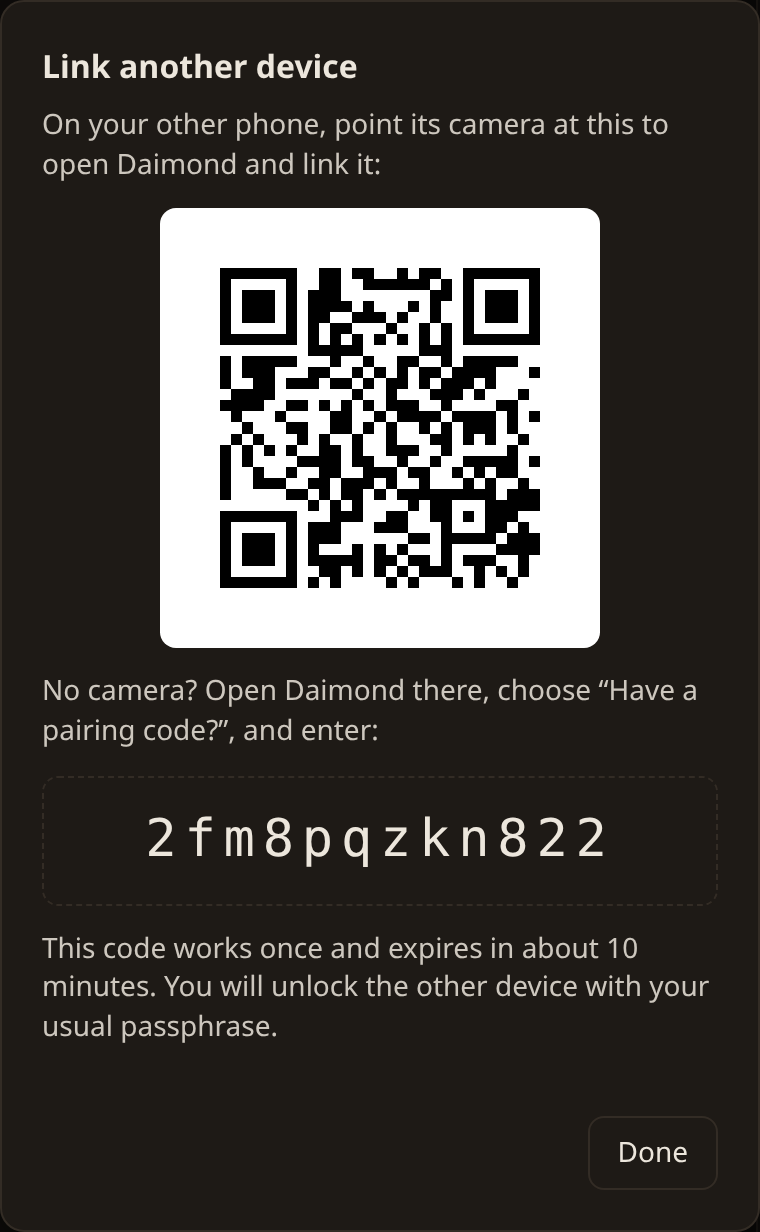
-
On the new device, scan the QR or type the code
Point the phone's camera at the code. It opens Daimond and fills the code in, so you only tap Link this device. Without a camera, open Daimond there, choose Have a passcode or a pairing code?, and type it.
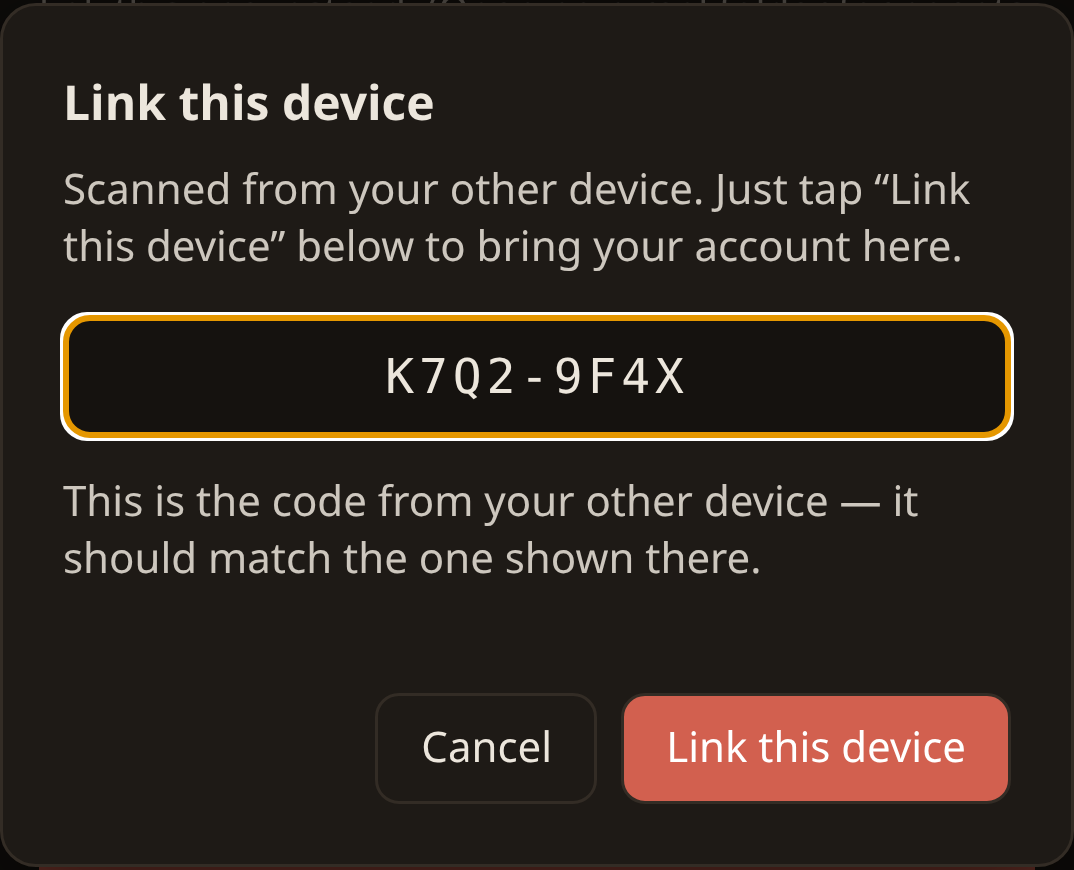
-
Unlock with the same passphrase
The new device now holds your account. Use the passphrase you already have, and your work appears. A passkey can unlock it faster afterwards.
What travels
Your chats, your diamonds and the way you laid them out, your mail, your workspace files, the devices on the account, and what you have paused all travel. Any kind of file travels, up to a gigabyte each. So does the Trash, so a deletion and a restore both reach every device.
What syncs is also what is kept in cloud storage, so a workspace can be larger than the device reading it. A file that is not here still shows in the tree and comes down when asked for.
A folder you opened on one computer is not in the browser's storage, so it does not travel by default. Files, email & the web covers the per-folder control that copies one to devices that cannot open it.
Running a turn somewhere else
When more than one of your devices is awake, one can run a turn for another and the answer syncs back. One switch turns it on, Hand off when you step away. A turn on this computer then moves to another awake device when you close it, whether the lid shuts, the tab closes or the connection drops, and finishes there.
Helpers & where turns run covers naming the machine that should pick turns up, and the two things that stop it.
An errand sent to another device, and the answer it sends back, are sealed to your account like everything else. The server routes a parcel it cannot open.
What it costs
Cross-device sync is part of Daimond Pro, at $8 a month, billed monthly, and you can cancel any time. Pro also turns on cloud storage, Email and a posting name. Away for a month, the billing pauses on its own and resumes when you are back.
Without Pro a device works on its own and loses nothing. Inference, bandwidth and other metered use are paid from credits either way.