Chats & diamonds
A chat is a conversation. A diamond is a saved project with its own memory, its own page and its own files. You keep the one inside the other.
A chat
The + beside Chats starts one. Type in the box and send. A new chat is titled New Chat until you say something, and after that its first line is its title.
While an answer is arriving you can keep typing. A message sent then waits as a dashed bubble and goes as its own turn when the answer finishes. Click it to take it back, or its cross to drop it. Pressing stop hands anything queued back to you, unsent.
Deleting a chat moves it to the Trash, so nothing asks first. The two acts that cannot be undone are the ones that ask, and both are in that panel.
Reading a long thread
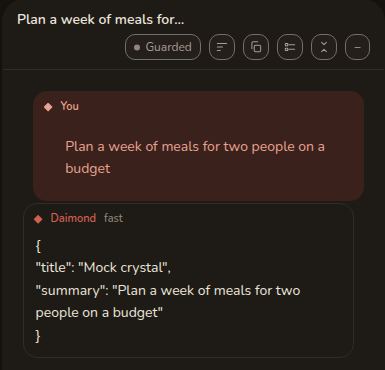
Every turn is a tile, labelled You, Thinking, Tool, Daimond, or as a note from the app itself. Each header carries the local date and time to the minute in the Holocene reckoning, so 12026-09-15 13:12 is this year plus ten thousand. Hover for the full instant with its offset.
The header of the chat carries the controls.
- Show steps shows the work done between your message and the answer.
- Collapse answers leaves only what you asked. It is the quickest way to skim, and how you start picking turns.
- Short answers is a standing request for brevity in this chat. It is a file in your workspace that you can edit, not a hidden instruction.
- The permission chip reads Guarded, Ask every time or Bypass. See Safety & fixes.
Two chevrons beside the send button walk back through your own messages and return to the end.
What a stop looks like
A turn says how it ended, in exact words.
- Answered means it finished and said something.
- Stopped means you pressed stop.
- Step limit reached means it ran out of rounds.
- Ended without saying anything means the model returned nothing at all.
- Ended without an answer, after reasoning means it thought, was asked once to answer or use a tool, and still said nothing.
- Ended on an error, or Ended: the tool call arrived as text, say what they say.
None of these is dressed up as an answer.
Rating an answer or a change
A final answer ends with an up arrow, a down arrow and a details control. A file a turn changed has the same three at the right end of its row, in the Files tile under that turn.
The up arrow gives a plus and the down arrow a minus, and a tap on a lit arrow takes the rating back. A down tap also opens a row of tags, such as Missed the point for an answer or Broke something for a file, so the rating can say what was wrong. The details control opens Rate this answer or Rate this change, with five steps from Useless to Great, the tags, four scores and a box for your own words. Withdraw in that popup removes a rating too.
A file carries arrows only where Daimond can say which model changed it. Where two agents worked in the same place at the same time, the row carries none, because a rating filed under the wrong model is worse than none.
A rating is saved in the chat it was given in, ten seconds after the last tap, or sooner when you send a message or leave the chat. It is listed in a Rating tile at the end of the thread, with a link back to the answer or the file. The model reads it once, with your next message in that chat, and the thread shows only what you typed.
Ratings can also lead to a steering note, a sentence added to a model’s instructions, and only when you press Add on a proposal. See Social & proposals.
Keeping a chat
Two buttons sit on a chat's row in the rail. Keep turns the whole conversation into a diamond. Fold all turns it into a diamond by summarising it, keeping what was worked out and dropping the back-and-forth.
To keep only part, collapse the answers, tick the turns worth keeping, and choose Fold Selected. Fold a step you have adopted, and leave a passing remark where it is.
Nothing is absorbed on its own. A diamond's memory changes only through a fold or an edit, and every write is kept in History, up to the limit described under History below.
Inside a diamond
Your diamonds sit above your chats, and the + makes one. A diamond has two faces, and a switch in its header moves between them. Crystal is what it knows, and Chat is its own conversation.
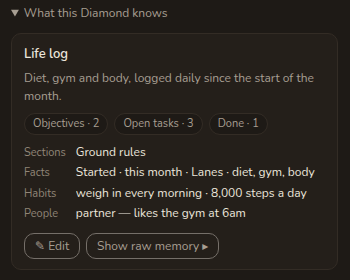
The card lists the diamond's title and summary in its own words, then everything else it holds, a line each. Edit opens a form. Show raw memory opens the file itself, for when you would rather work in it directly.
A daimon looks at what it has changed before it says it is done. It names a view rather than guessing at the page: the document preview, an open file, any panel on screen, the whole window, or its diamond's own page. If its own model reads no pictures, the diamond's images model describes them, and a failure names that model and its provider. A question a daimon asks is drawn only while its conversation is on screen; from another face it is told why, and asks in its reply instead.
The four files a diamond keeps
Memory is kept in the open. Four files sit in the diamond's own folder, readable in the Workspace panel and by the daimon.
crystal.jsonholds what this diamond is, meaning its title, summary, sections, facts and links.REQUIREMENTS.mdholds what is to do, as objectives with ranked tasks under each. A task leaves it by being ticked or struck out, and by nothing else.DECISIONS.mdholds what was ruled, dated, with the reason. New rulings are appended, and old ones are left as they were.STATE.mdholds where things are now, and is overwritten each time.
All four ride with the daimon on every round inside one budget, so what a diamond is told about itself is bounded and predictable. A crystal too large to fit whole keeps its overflow readable and searchable instead of dropping it. The counts on the card, Objectives, Open tasks and Done, are read off REQUIREMENTS.md.
Two kinds of fold
The word covers two different acts.
- Summarise earlier messages, in the chat header, is the app compressing a conversation that no longer fits. Its decisions are filed into
DECISIONS.md, its open items intoREQUIREMENTS.md, and its next step intoSTATE.md. What it files can be found afterwards, and what it leaves in a notice cannot. - Fold now, on the Crystal face, is a model rewriting what this diamond remembers from what has happened since. Every write snapshots a version.
Filing is repeatable, so running the same fold twice files nothing twice, and the order two folds arrive in does not change what the files end up saying.
History
History lists the versions it keeps, newest first. It keeps up to 200 versions within a size limit you can change in Settings, and the foot of the list says both. When it is full, the oldest of the daimon's edits are removed first; your saved versions, your own files, your page's data and deletions are removed last. A row in the list says which versions were removed and when. View reads one, Restore makes it current again, and Delta shows the material a fold was given. Restore keeps what was current first, so a restore can itself be undone.
Every file the daimon changes in a diamond is kept too, and a row's Restore file brings one back while Restore brings the whole version back. Files on this computer are kept only where the daimon wrote them here, so a change made by an editor, a build or a command is not in History. Deleting, renaming, folding and restoring each show Undo for five seconds, and after that the act stands.
Acting without being asked
A diamond answers when you prompt it and at no other time, unless you set up a triggered action. Those live under When this diamond acts on the Crystal face, and Add an action makes one. Two things can set one off, either minutes of your own activity, counted only while you work, or mail arriving in a folder you name.
Each action carries an instruction, sent every time, and a context, sent once until you change it. They are an ordinary file, triggers.json, in the diamond's folder.
A new action is stopped, and says so: Stopped. Press ▶ on the light beside the pulldown to let this action run. One press arms it.
The light
Every action, every diamond and the Everything row wear the same three-part control, a play, a pause and a round light. The light says whether anything is armed and free to fire.
- Red. Nothing here will act by itself.
- Amber. Some of it will, and some is held.
- Green. Everything set up will act.
A fresh account is red everywhere, which is the honest answer to whether anything is running by itself. An action missing its mailbox or its instruction is left out of the count, because it could not fire. Amber can only be arrived at, never set.
A held action spends nothing, because it is refused before the turn starts.
Tags, links and the Trash
Tags on the Crystal face files a diamond in the rail. Up to eight tags, lowercased and deduplicated. Suggested offers four to start from. Tags are inert. They are not sent to a model, they are no part of the memory, and they change nothing an agent does. Filter by tag in the rail narrows by them. Search diamonds, above it, finds a diamond by its name or by the start of a tag. The two narrow together, and Esc clears the search.
A diamond can also be linked to another, and the Graph is the picture of that.
Deleting a chat or a diamond trashes it. It is still stored and still synced, out of every daimon's reach, and kept thirty days with the date on the row. Restore brings it back on every device. Delete permanently and Empty trash are the two that ask.