

Models & providers
A daimon thinks with a model. Bring a key you already hold and pay that provider directly, or buy credits and let Daimond run one for you.
Your own key
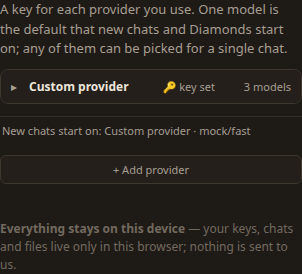
Open the model row at the foot of the rail. It lists a key for each provider you use and which model new work starts on. + Add provider asks the same three questions whoever the provider is.
-
Choose a provider
Anthropic, Fireworks AI, OpenRouter, Together AI, Groq or DeepInfra. Custom reveals a Base URL box for any other service speaking the same chat API, including one on your own machine.
-
Paste the key
It is stored wrapped under your passphrase, and sent to the provider you chose and to nobody else. It reaches your other devices only inside the encrypted sync parcel, still wrapped.
-
Star a default model
List models fetches the catalogue where the provider offers one, and otherwise you type the model id. The starred one is where new chats and diamonds begin.
Your messages then go straight to that provider on your own account. Daimond is out of the path, and we charge nothing.
Choosing a different model
The default is a starting point. Any connected model can be chosen for one chat from the selector in its header, and the default is untouched. A diamond can also carry a separate Helper model for the agents it dispatches, which applies to the next one dispatched and to none already running.
Where a model publishes no context window, the tile says Context size unknown for this model. and guesses nothing.
Choosing who serves it
A router hands one model to whichever upstream provider it likes, and they are not equally good. Under an OpenRouter provider, each model row carries a Providers field, with the placeholder prefer, -avoid, !.
- A bare name prefers that provider.
- A leading
-avoids one. - A bare
!means only these, refusing every fallback.
So Novita, -DeepInfra prefers one and avoids another. The field is saved as you leave it. A provider whose catalogue has not been fetched keeps its rows behind a Models… disclosure, so a preference already set stays reachable.
Credits
Credits run the model for you with no key needed, and they also meter the few things that leave the browser: fetching a page, the bandwidth of mail and of cross-device sync, and cloud storage beyond the free tier. Sync, Email and cloud storage themselves are turned on by Daimond Pro, and metered use is paid from credits with or without it.
Open the credits row for your balance and the suggested amounts, or type any other amount in your own currency: the US dollar charge is shown beside it before you buy. Credits are not a subscription, and you keep what you buy. Payment happens on the payment provider's own hosted page, so no card number is typed into Daimond.
While testing is closed, new accounts with credits are given out by passcode. Daimond works with your own provider key without one.
Auto-reload
Auto-reload is a standing instruction to buy credits when they run low, so a long job does not stop halfway. It is the one place Daimond may charge a saved card while you are away, so it is deliberately explicit. Three numbers set it.
- Below is the balance at which a top-up fires.
- Buy is how much one top-up adds.
- Never spend more, per month, than is a hard cap on the calendar month. Set this one carefully. It is enforced on the same code path as the charge.
It cannot be switched on without a saved card, because a control that turned on and then failed silently would be worse than one that is disabled and says why.